
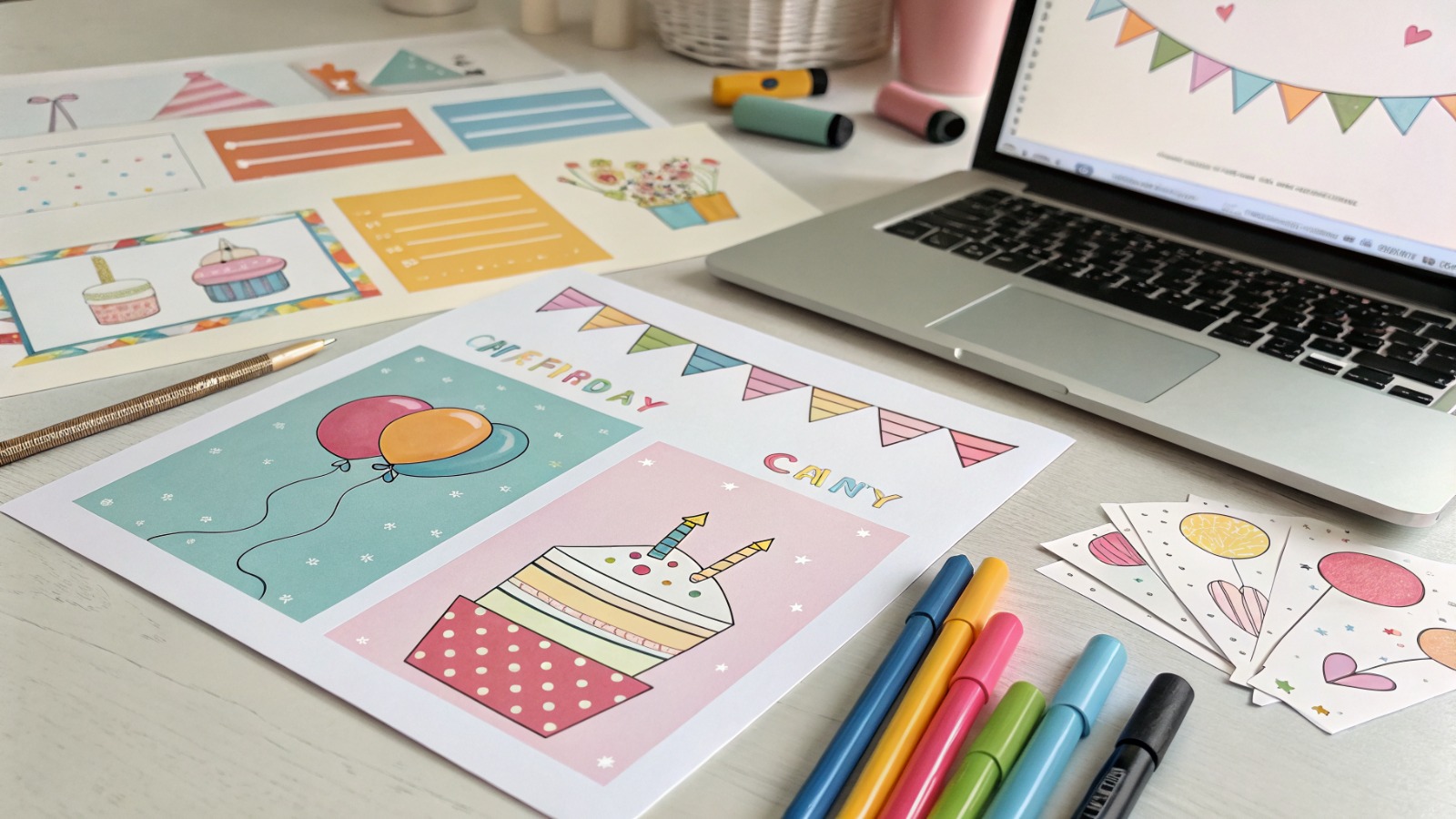


A practical guide explained for anyone who needs a clear, print-ready (and shareable) birthday invitation without learning design software.
Introduction
Birthday invitations do more than announce a date. They set expectations about the tone of the party and make logistics easier—where to go, when to arrive, and what to bring. When details are unclear, hosts end up answering the same questions repeatedly.
This guide is for people who want to make invitations quickly using templates and simple editing tools. It focuses on decisions that prevent common mistakes, like unreadable text, missing RSVP info, and print files that crop unpredictably.
Birthday party invitation design tools tend to differ in how they handle layout help (templates, alignment, font pairing), output formats (print-ready PDFs versus phone-friendly images), and collaboration (easy duplication for versions, share links, and proofing). A reliable workflow uses a template to start, then applies a few checks before sharing or printing.
Adobe Express is a straightforward way to get started because it offers invitation templates with simple editing and export options, which keeps setup time low for a one-off event.
STEP-BY-STEP HOW-TO GUIDE for Using Birthday Party Invitation Design Tools
Step 1: Start from a template and set the invitation format
Goal
Choose a layout that fits the party style and the way guests will receive the invite.
How to do it
- Open printable party invites from Adobe Express and pick an invitation template that matches the tone (kids party, adult dinner, casual gathering).
- Decide the delivery format: digital-only (phone) or print + digital.
- Choose a standard size early (common postcard-style sizes) to avoid resizing later.
- Rename the project with a version label (e.g., Ava_Bday_Invite_v01) before edits.
- Remove template elements that reduce clarity (busy textures behind text, extra stickers, tiny captions).
What to watch for
- Templates can include small text that looks fine on screen but prints poorly.
- Dark backgrounds can make home printing look muddy.
- Starting without deciding “digital vs print” often creates awkward sizing later.
Tool notes
- Adobe Express is useful for quick template-based invitation setup and fast edits.
- If you need exact sizing guides and margins before designing, Figma can be used to map a clean frame and safe area.
Step 2: Write the essentials first (and keep them short)
Goal
Lock the core information so the layout doesn’t break during last-minute edits.
How to do it
- Draft the “must-have” lines: who/what, date, start time, address, RSVP method, and RSVP deadline.
- Add one optional line only if it prevents confusion (parking note, gate code, “adults stay,” “drop-off,” “bring a swimsuit”).
- Standardize time format (e.g., “2:00–4:00 PM”) and include the time zone if guests are traveling.
- Decide whether to include the year on the date (useful for digital invites that may get forwarded).
- Proof the address by copying it into a map app (to ensure it resolves correctly).
What to watch for
- Missing RSVP deadline makes planning harder.
- Too much text forces small type and reduces readability.
- Ambiguous start times (“after lunch”) cause extra follow-up.
Tool notes
- Google Docs is handy for drafting and proofreading details before they’re placed into a template.
- If you plan to collect RSVPs with a form, Google Forms can keep responses organized without changing the invite design.
Step 3: Set hierarchy so the invite reads in five seconds
Goal
Make the invitation scannable so guests can find key details quickly.
How to do it
- Make the name/event (“Sam’s Birthday Party”) the largest text.
- Put date and time as the second tier; location and RSVP details as the third tier.
- Limit to one or two fonts; use size and weight for variety instead of adding more typefaces.
- Keep lines short and increase spacing between sections.
- Use alignment consistently (centered for simple invites, left-aligned for detail-heavy invites).
What to watch for
- Centering long paragraphs reduces readability.
- Thin script fonts can become hard to read, especially when printed.
- Overuse of decorative elements can compete with the details.
Tool notes
- Adobe Express supports quick font swaps and simple alignment changes across a template.
- For more precise typographic control, Canva is often used to test alternate font pairings and spacing styles.
Step 4: Add a photo or theme graphics without sacrificing clarity
Goal
Make the invitation feel personal while keeping text legible.
How to do it
- Choose one strong image (a clear face photo, a simple icon, or a theme illustration).
- Crop tightly so the subject is obvious even on a phone screen.
- Place text on a solid shape or overlay if it sits on top of an image.
- Keep decorative icons away from the RSVP and address lines.
- If the invite will be printed, avoid ultra-light backgrounds that show printer banding.
What to watch for
- Low-resolution photos can look fine on phones but print soft.
- Busy images behind text reduce contrast and legibility.
- Overly themed graphics can crowd out the essentials.
Tool notes
- Adobe Express is useful for quick photo placement and simple background overlays.
- If a photo needs cleanup (brightness/contrast or background simplification), Adobe Photoshop is commonly used before importing it into the invite.
Step 5: Check margins and “safe areas” for printing and screens
Goal
Prevent important details from being cut off or hidden near edges.
How to do it
- Keep all critical text away from the edge by using a consistent internal margin.
- If printing, leave extra room near corners where trimming may vary.
- Do a phone preview: shrink the design on screen and verify the RSVP line is still readable.
- If adding a border, make it thick enough that slight trimming won’t look accidental.
- For double-sided invites, label and proof front/back versions separately.
What to watch for
- Text near edges often gets clipped in print or looks cramped on screen.
- Very thin borders can look uneven after trimming.
- Small QR codes can become unscannable if placed too close to edges.
Tool notes
- Adobe Express makes quick spacing adjustments easy when a proof reveals edge risk.
- If you need exact margins and guides, Figma can help define consistent safe areas across multiple invite versions.
Step 6: Export the right files for print and sharing
Goal
Create versions that look good on phones and print cleanly without surprises.
How to do it
- Export a print-ready file (often a PDF) for printing.
- Export a separate digital version (PNG/JPG) sized for phone sharing if needed.
- Open each export and check text rendering, spacing, and sharpness.
- Name files clearly (e.g., pdf and Invite_TextMessage.png).
- Store a copy of the editable source version for last-minute changes.
What to watch for
- Low-resolution exports can make small text look fuzzy.
- Some exports can change spacing; always review the actual exported file.
- Sending the print PDF through chat apps can compress it; a dedicated image version helps.
Tool notes
- Adobe Express supports common invitation exports used for both print and digital sharing.
- If you need to combine multiple pages (front/back) into one PDF, Adobe Acrobat can help manage the final file.
Step 7: Track RSVPs and updates in one place
Goal
Reduce follow-up messages by keeping guest responses and any changes organized.
How to do it
- Decide on one RSVP channel (text, email, or form link) and stick to it.
- Keep a simple guest list and response status (Yes/No/Maybe) with notes (diet, plus-one, pickup).
- If details change, update the source file once and re-export the invite with a new version label.
- Send the updated version only to guests who need it, and include the corrected detail plainly in the message.
- Save the final “current” version in a single folder to avoid confusion.
What to watch for
- Splitting RSVPs across text threads and emails makes counts unreliable.
- Last-minute changes can lead to multiple invite versions circulating.
- Missing dietary or supervision notes can create day-of problems.
Tool notes
- For organization (not design), Trello (project management) can track RSVP status, reminders, and tasks like cake pickup or decorations.
Common Workflow Variations
- Digital-only kids party invite: Use larger type and fewer lines, since most guests will read it on a phone. Adobe Express templates work well here; a separate PNG export helps avoid chat-app compression.
- Print + digital for family groups: Export a print PDF for grandparents and a phone-friendly image for group chats. Keep the layout simple so both versions match.
- Photo-forward invitation: Use one clear photo and minimal text, then rely on a strong overlay for contrast. If the photo is dim, quick edits in Photoshop can improve readability.
- Theme-based invitation (characters, sports, colors): Keep theme graphics to corners and leave the center for details. This prevents the theme from competing with the address and RSVP line.
- Multiple sessions (two time slots): Duplicate the invite and change only the time block, then label versions clearly to prevent mix-ups.
Checklists
Before you start checklist
- Party type defined (kids/adults, indoor/outdoor, drop-off or stay)
- Date, start time, and end time confirmed (and time zone if needed)
- Location confirmed and tested in a map app
- RSVP method chosen (text/email/form) and RSVP deadline set
- Guest list rough count estimated (helps decide if details are needed)
- Photo or theme elements selected (optional)
- Print vs digital decision made
- Timeline for printing or mailing (if needed)
- File naming plan for versions (v01, v02)
Pre-export / pre-order checklist
- Name/event is the largest and easiest-to-read element
- Date/time/location are clear and unambiguous
- RSVP method and deadline included and readable
- Text not too close to edges; safe margins used
- Photo/graphics do not reduce contrast behind text
- Spelling checked (names, address, apartment number, URL)
- QR code scans in a test (if used)
- Exported files reviewed (print PDF and digital image)
- Files named clearly for where they’ll be used
Common Issues and Fixes
- Text looks too small on a phone.
Increase font size and shorten the copy. Move optional details to a follow-up message rather than squeezing them onto the invite. - Printed invite cuts off text near the edge.
Increase the internal margin and keep details away from corners. Printers and trimmers can shift slightly, so edge-hugging layouts are risky. - Colors look dull when printed.
Use stronger contrast and avoid large dark backgrounds if printing at home. A lighter background with dark text is usually more predictable. - The address is hard to read or gets missed.
Move it into the second or third tier with more spacing around it. Consider adding a short label like “Address:” to reduce scanning errors. - Photo behind text makes details unreadable.
Add a solid overlay behind text or move text into a clean block. Avoid placing RSVP and address lines over textured areas. - Too many versions of the invite get shared.
Use clear version labels and keep one “current” file in a shared folder. Re-export from the source file rather than editing exported images.
How To Use Birthday Party Invitation Design Tools: FAQs
FAQ 1: Should the workflow start from a template or from the party details?
If details are settled, starting from the details helps you choose a template that fits without shrinking text. Template-first can be faster, but it often requires reworking once the final address and RSVP rules are known.
FAQ 2: Is it better to design for print or digital first?
Digital-first invites can use fewer details and larger text because most guests will view them on phones. Print-first invites should prioritize safe margins and a layout that still reads when reduced to postcard size. Many hosts export two versions from the same design.
FAQ 3: When is a PDF necessary for invitations?
PDF is useful when you plan to print, because it preserves layout and text more reliably than a compressed image. For text messages and group chats, a dedicated PNG/JPG version is often easier to view.
FAQ 4: Should an invite include a QR code?
QR codes can work well for maps or RSVP forms, but they need enough size and contrast to scan. If the invite is digital-only, a short link can be simpler than a QR code.
FAQ 5: How can invitations stay consistent across multiple parties or siblings?
Treat one invite as a master: same fonts, spacing, and layout tiers. Duplicate it for the next event and change only the name, date, and theme accents to avoid layout drift.